
How to Download Music from Spotify to USB Flash Drive?
Owning a Spotify Premium account means you can download Spotify songs for offline playback. But that doesn't mean you can do everything with those downloads. For example, if you want to put your Spotify playlist on a USB stick, Spotify Premium can't do anything about it. Don't worry—it's not the end of the story. This guide shows you the actual way to download music from Spotify to a USB drive in 2026.
Here's what you'll learn:
- Why Spotify's own "download" feature can't put music on a USB drive
- How to prepare your USB drive — file system, capacity, car compatibility
- Step-by-step: download Spotify playlist to MP3 and copy to USB, with screenshots
- Where you can play your Spotify USB — car, TV, speakers, DJ gear & more
- Answers to the most common Spotify to USB related questions
Because of DRM, you can't directly transfer Spotify music to USB drive. The solution is to use a third-party Spotify music converter, such as Kigo Spotify Converter, to download Spotify playlists as MP3 files and then copy them to USB drive. It works with both Spotify Free and Premium accounts.
Contents
- Part 1. Can You Download Spotify Playlist to a USB Drive?
- Part 2. Before You Start: Get Your USB Drive Ready
- Part 3: What is the Best Way to Download Spotify Music to a USB drive?
- Part 4: Detailed Steps to Download Music from Spotify to USB
- Part 5. Where Can You Play Your Spotify USB?
- Part 6. FAQs about Downloading Music from Spotify to USB
Part 1. Can You Download Spotify Playlist to a USB Drive?
Short answer: Yes, but not with the Spotify app alone. Spotify Premium lets you download playlists for offline listening, but those downloads are saved as encrypted Ogg Vorbis cache files. They are not real song files: you can't locate them as MP3s on your computer or copy them to a USB stick. The offline library only works inside the Spotify app and stops working once your Premium subscription ends.
So, if your goal is to play Spotify music on a car stereo, smart TV, or portable speaker via USB, you must first convert Spotify songs to a universal format such as MP3. This guide shows you exactly how.
Why changing Spotify's storage location to USB doesn't work
You might be wondering: "Can't I just change Spotify's offline storage location to my USB drive?" Technically, yes. Open Spotify Settings > Storage > Offline storage location and select your USB stick (Premium only; Read how to get Spotify Premium free). But here's the catch: the songs are still stored as encrypted cache files that only the Spotify app can read. Your USB drive must stay plugged in while you listen through Spotify, and plugging it into your car stereo will show... nothing. Changing the storage location is not the same as downloading playable Spotify music to USB drive. To get regular audio files, you'll need to convert the songs to a format like MP3.
Part 2. Before You Start: Get Your USB Drive Ready
Before transferring your Spotify music to USB drive, make sure you choose the right one. The USB drive's storage capacity and file system can affect how many songs it holds and whether it works with your car stereo or other devices. Let's look at what to check before getting started.
➡️ Choose the Right File System
| File System | Best For | Limitation |
|---|---|---|
| FAT32 | Car stereos, old players, widest compatibility | Single files must be under 4 GB (fine for music) |
| exFAT | Windows, macOS, newer car stereos | Not readable by some old devices |
| NTFS | Windows computers | Many car stereos and TVs can't read it |
For the widest compatibility, especially with car stereos, FAT32 is usually the safest choice. If your USB drive is larger than 32 GB, consider exFAT instead.
➡️ How Many Spotify Songs Fit on a USB Drive?
| USB Capacity | Approx. Songs (320kbps MP3) |
|---|---|
| 8 GB | ≈ 1,200 songs |
| 16 GB | ≈ 2,400 songs |
| 32 GB | ≈ 4,900 songs |
| 64 GB | ≈ 9,800 songs |
A 3-minute song takes up about 6.5 MB at 320 kbps. Once you've chosen your USB drive, all you need is a computer and Kigo Spotify Music Converter, which we'll introduce next.
Part 3: What is the Best Way to Download Spotify Music to a USB drive?
Is there a way to save Spotify music to USB? Yes. Kigo Spotify Music Converter is built exactly for this job. It downloads Spotify songs, playlists, albums and podcasts as plain MP3 files (as well as FLAC, WAV, AAC, AIFF and ALAC) while keeping the original quality and ID3 tags. It works with both Spotify Free and Premium accounts and runs 100% clean and safe on your computer. You can also read the full Kigo Spotify Converter review.

Key Features of Kigo Spotify Converter
- Download Spotify track, album, playlist, podcast, radio, audiobook.
- Convert Spotify music to MP3, AAC, FLAC, AIFF, WAV, or ALAC audio.
- Keep 100% original audio quality; preserve ID3 tags, lyrics.
- Enjoy up to 10× faster conversion speeds with batch downloads.
- Burn Spotify music to CD or export to iTunes with one click.
- Enable offline listening for both Spotify Free and Premium users.
- Activate the permanent playback of Spotify music.
Windows 11/10/8 Free Download
macOS 11 or later
What About Free Online Spotify Playlist Converters?
Thinking about ripping music from Spotify to USB free? Online free Spotify playlist downloaders are good options, but they come with real trade-offs:
- Audio quality is usually capped at 128kbps
- Songs must be downloaded one by one — no playlist batch support
- Ads and pop-ups slow down every download
- Web tools shut down or break without notice
Part 4. Detailed Steps to Download Music from Spotify to USB
Kigo Spotify Converter is designed for beginners. With its clean interface, you can download a Spotify playlist to MP3 and transfer it to a USB stick in just a few minutes. Let's download the application on your computer first.
Part 4-1: Convert Spotify Music to MP3
- Step 1 Launch Kigo Spotify Converter program
- Step 2 Add Spotify songs you want to transfer to USB
- Step 3 Adjust output settings
- Step 4 Start download Spotify songs
- Step 5 Find downloaded Spotify music
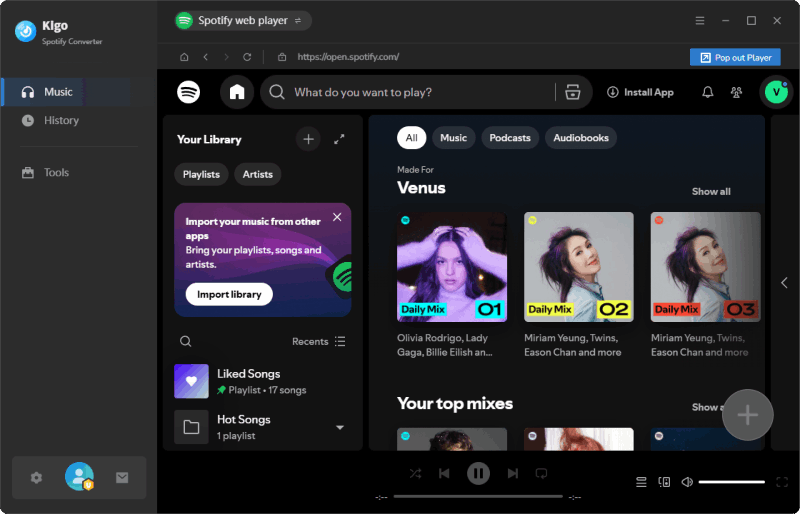
Follow the setup wizard to install the program on your computer. To access your own Spotify music library, login your Spotify account. Both Spotify free and premium accounts are supported.
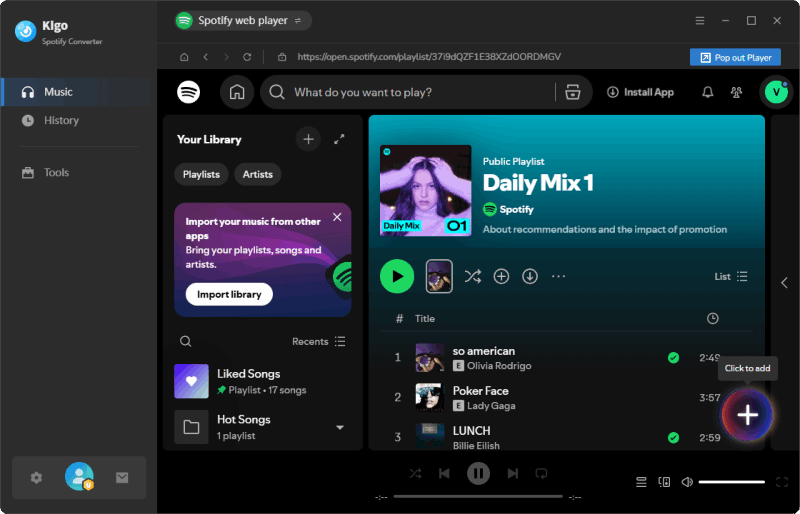
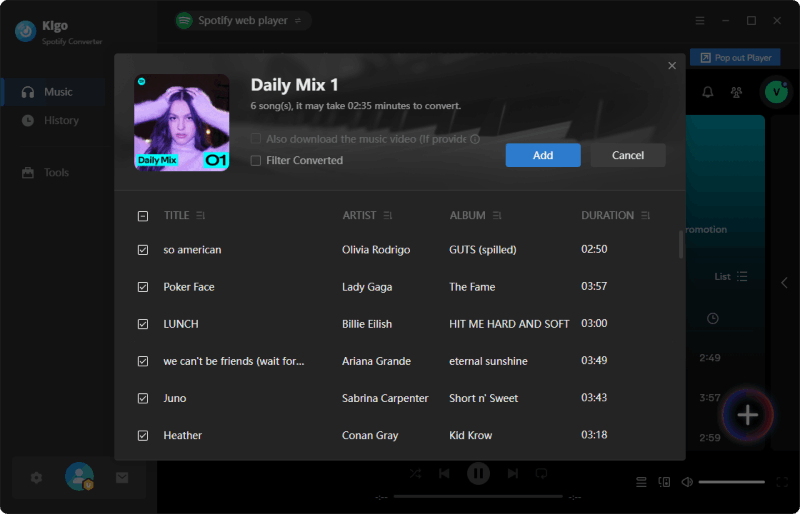
In Kigo program, search for and browse the Spotify songs, playlists, or albums that you want to save to your USB drive, then add them by clicking the "+" icon. You can continue adding more tracks or delete any tracks you don't want. Click the Add button to confirm your selection, and the program will add them to the download queue.
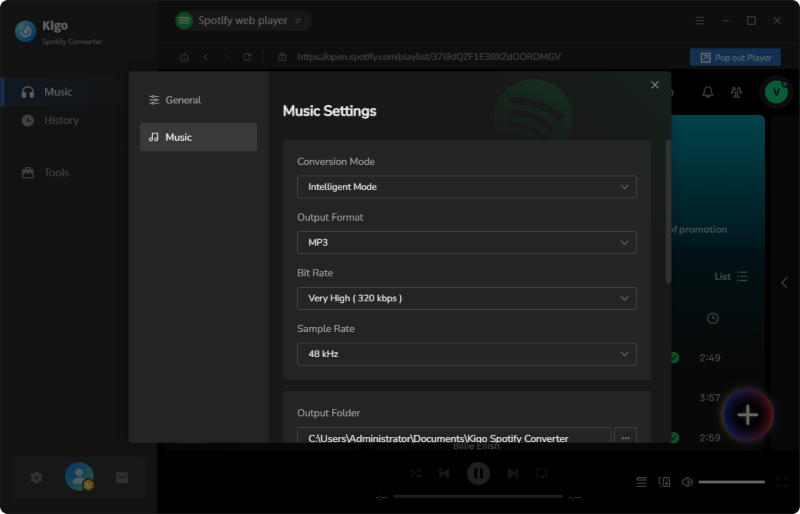
In Settings, you can easily select the output format, audio quality, output folder, and other parameters. For easier music library management, Kigo also allows you to organize how files are sorted (Title, Track Number, Artist, Album, Year). In this case, we set the output format to MP3 and the audio quality to 320 kbps.
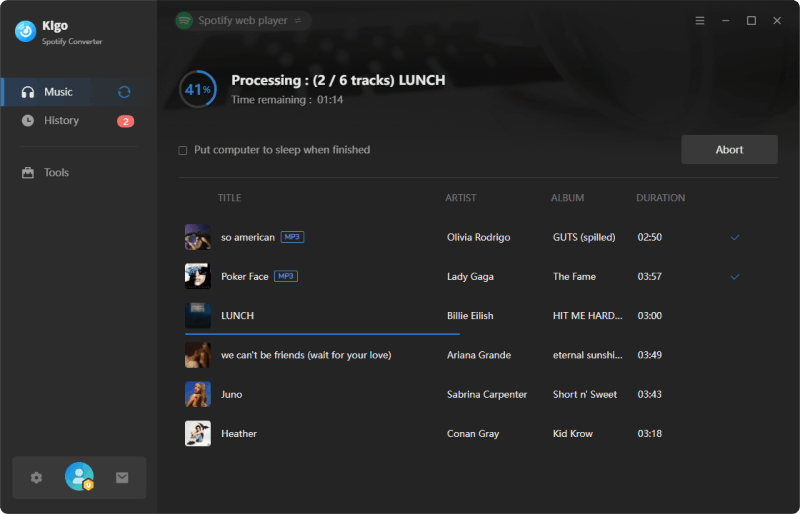
When everything is ready, click "Convert" button to start downloading your Spotify tracks. Kigo Spotify Converter supports up to 40x download speed and batch conversion.
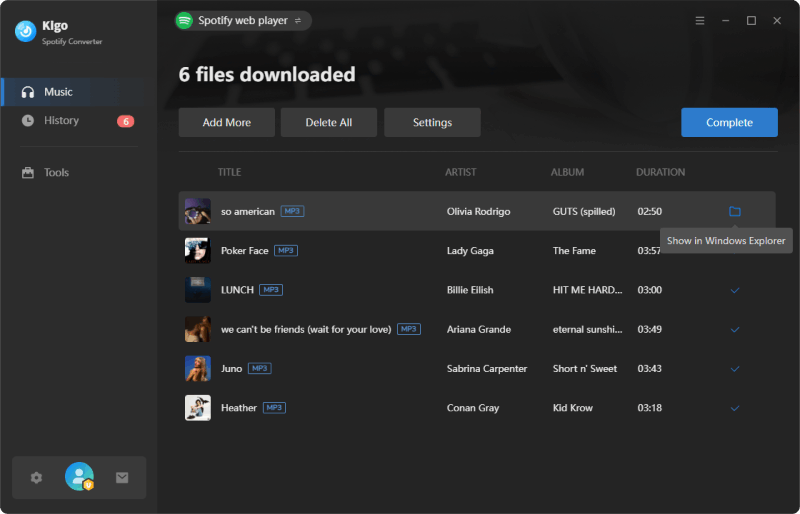
Once the download process reaches 100%, click "History" tab to view all your downloaded songs. You can go directly to the destination folder by clicking "Folder" icon when you hover over any converted song.
Part 4-2: Copy Music from Spotify to USB
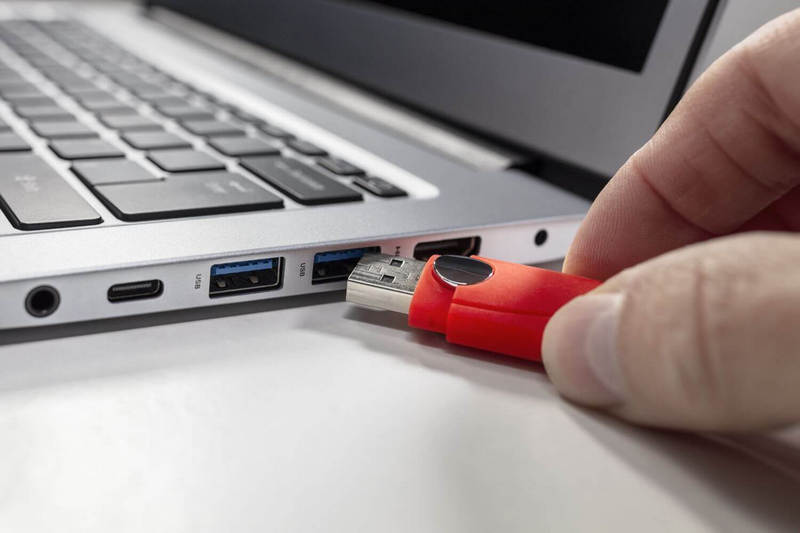
Step 1 Put the USB flash drive into a free slot on your computer. Your computer will detect the USB drive and ask if you want to open it. Click to open the folder.
Step 2 Open the folder where the downloaded Spotify music is located on your computer. You can find it directly from the "History" tab in the Kigo program.
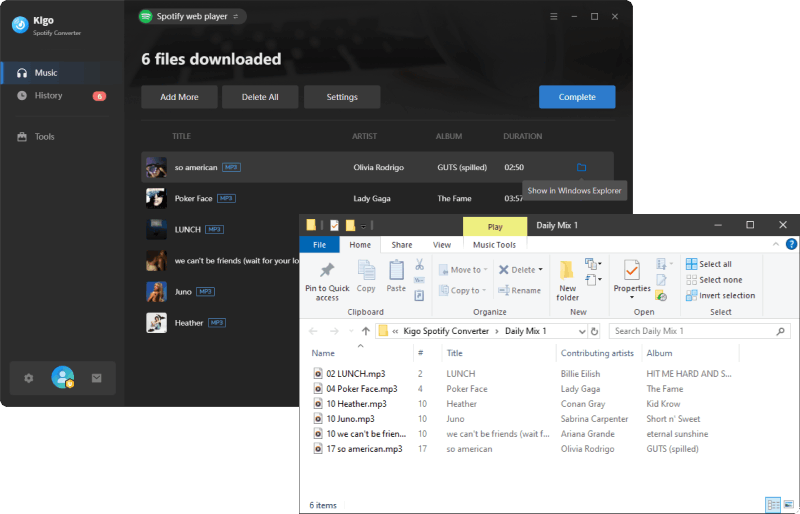
Step 3 Select the songs you want to transfer to the flash drive, drag and drop them to the target folder of the USB. It may take some time for transferring a large playlist.
Step 4 When the transfer is complete, right-click the drive icon and select Eject to safely remove the USB drive from your computer. (Don't remove the USB drive directly to avoid data corruption.)
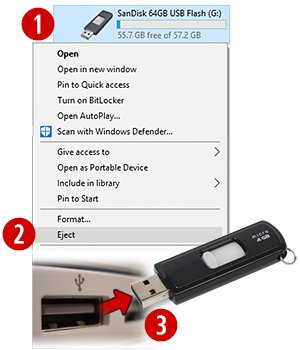
Now you have downloaded music from Spotify to a USB drive successfully. These MP3 versions of Spotify songs can be enjoyed by simply plugging the USB into any device you prefer. No internet connection or Spotify app required.
Part 5. Where Can You Play Your Spotify USB?
Once the Spotify songs are saved to USB drive, you're no longer limited to listening through the Spotify app. A USB music library gives you more flexibility wherever you need it, whether you're enjoying music at home, driving, preparing for a DJ set or event, or keeping a backup of your favorite tracks.
In Your Car
Plug the USB drive into your car's USB port, and many car stereos will start playing the music automatically. Here are three quick tips:
- Put your songs in the root directory of the USB drive. Some car stereos may not recognize files stored inside folders.
- Use MP3, which is the most widely supported audio format for car stereos. WMA, AAC, and WAV may also work, depending on the system.
- Format the drive as FAT32. Some older car stereos may not support exFAT or NTFS.
Note: This is especially useful for older cars without CarPlay or Bluetooth, rental cars where you don't want to log into your personal account, and long road trips through areas with limited signal. You can also save your phone's battery and mobile data.
At Home
The same USB drive can work with AV receivers, mini Hi-Fi systems, smart TVs, game consoles such as PS5 and Xbox media players, and karaoke machines. Many of these devices have a USB port but don't support the Spotify app.
For DJs and Events
DJ equipment such as Pioneer CDJs and PA systems generally can't stream directly from Spotify. Instead, DJs typically use audio files stored on a USB drive to carry their music library. If you're interested in DJing with Spotify, check out DJ software with Spotify for more ideas.
As a Backup or Gift
Songs can sometimes disappear from Spotify because of licensing changes. Keeping a copy on a USB drive gives you a convenient backup of your favorite playlists. A curated USB drive can also make a thoughtful gift for family members who aren't comfortable using streaming apps.
Part 6. FAQs about Downloading Music from Spotify to USB
❓ Q1. Can I download my Spotify playlist to a USB?
Yes. Convert the playlist to MP3 with Kigo Spotify Converter first, then copy the MP3 files to your USB stick.
❓ Q2. Do I need Spotify Premium to download music to a USB?
No. Kigo Spotify Converter works with free Spotify accounts as well, so you can download Spotify songs, playlists and albums to USB without a Premium subscription.
❓ Q3. What format should Spotify songs be in for USB drive?
MP3 is the safest choice — it's supported by car stereos, TVs, speakers, phones and almost every player with a USB port. For audiophiles with FLAC-compatible equipment, choose FLAC. AAC and WAV are also widely supported.
❓ Q4. Why won't my car play music from my USB?
The most common causes: the drive is formatted as NTFS (reformat to FAT32 or exFAT); the songs are inside folders (move them to the root directory); the audio format isn't supported (convert to MP3); or the drive is too large for an old stereo (some cap at 32 GB). Also check that the USB port itself works.
Conclusion
Spotify keeps its music in an encrypted cache, so you can't directly transfer Spotify music to a USB drive. But with Kigo Spotify Converter, you can convert Spotify playlists to MP3 files and copy them to USB stick for playback in your car, home stereo, TV, or other compatible USB players. Once transferred, you can enjoy your music offline without relying on an internet connection or the Spotify app. Start transferring your Spotify playlists to USB today!
Note: The trial version allows you to download the first 1 minute of each file. To access the full length, please unlock it with a valid license code.